Turn Your Phone into a Crypto POS: Accept Payments Without Hardware
Accept USDC payments at your store, market stall, or pop-up with just a phone or tablet. No hardware, no monthly fees, no merchant account required.
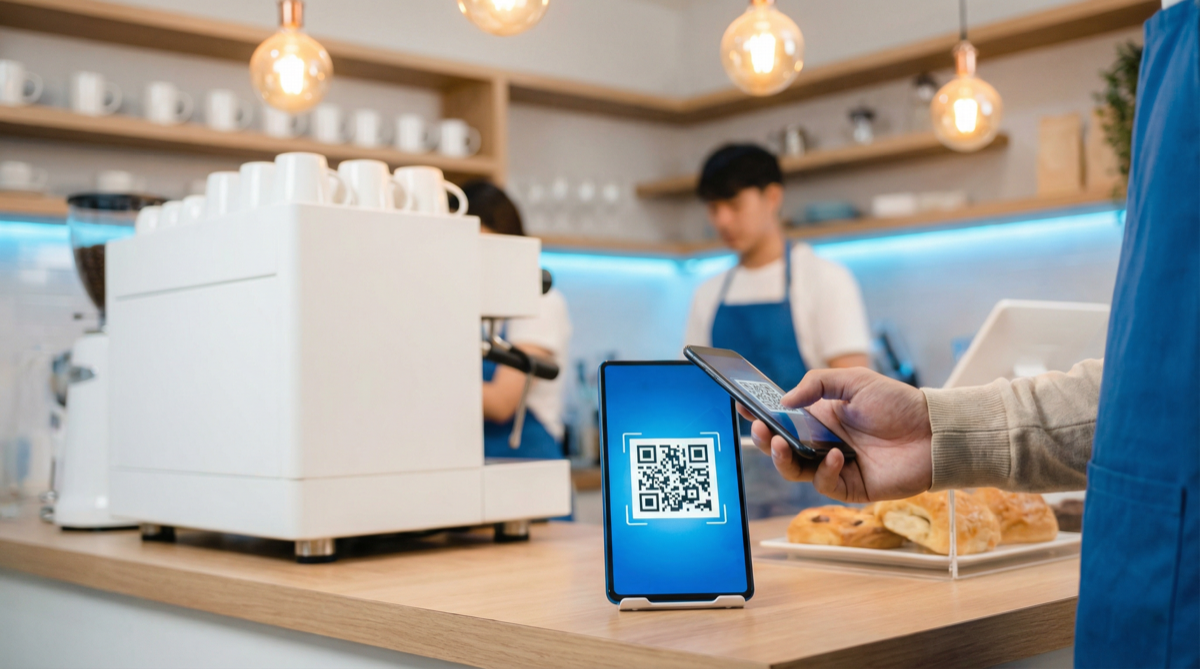
Traditional POS terminals cost $300-800 upfront. Monthly fees add another $30-100. Payment processing takes 2.5-3.5% of every transaction.
What if your phone could do the same job—for free?
With PayinGo, any smartphone or tablet becomes a crypto point-of-sale terminal. Accept USDC stablecoin payments with instant confirmation, zero hardware costs, and no processing fees.
The Problem with Traditional POS
If you run a retail business, you know the costs:
| Traditional POS Cost | Typical Amount |
|---|---|
| Terminal hardware | $300 - $800 |
| Monthly fee | $30 - $100 |
| Per-transaction fee | 2.5% - 3.5% |
| Chargeback fees | $15 - $25 each |
| PCI compliance | $100+ annually |
For a small business processing $10,000/month, you’re looking at $3,600+ annually just in payment processing costs—before chargebacks.
And if you’re a market vendor, food truck operator, or pop-up shop? The economics get even worse. Renting terminals, dealing with connectivity issues, and losing sales when the card reader fails.
The Mobile Crypto POS Alternative
PayinGo’s POS mode turns any device into a payment terminal:
How it works:
- Create a payment link at go.payin.com
- Open the POS link on your phone or tablet
- Customer scans the QR code with their crypto wallet
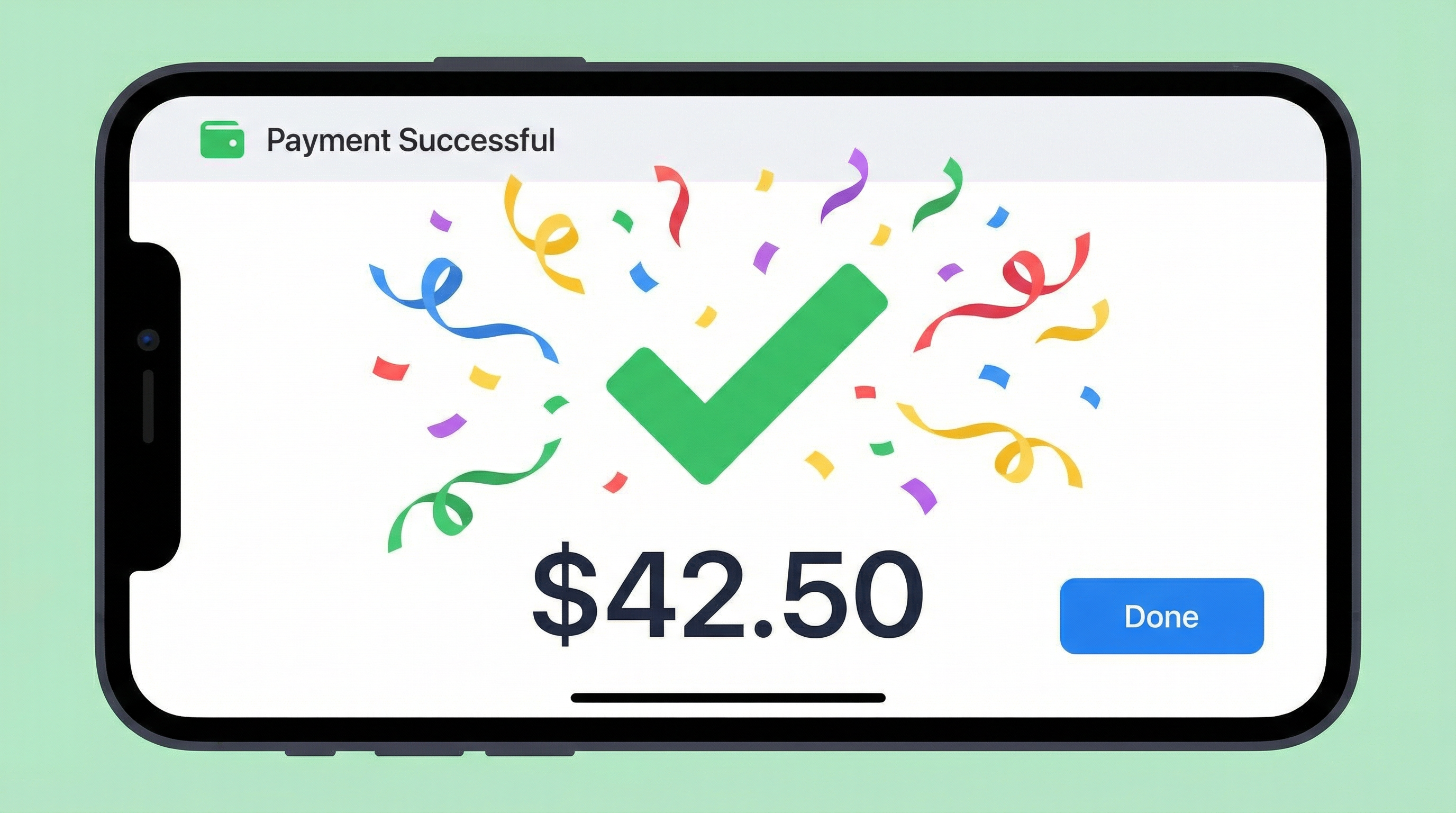
- Screen confirms payment with amount, sound, and visual feedback
- Funds arrive in your wallet instantly
No hardware to buy. No monthly fees. No percentage per transaction.
POS Features That Matter for Retail
PayinGo’s POS mode is designed for real-world retail scenarios:
Real-Time Confirmation
When a payment arrives, your screen:
- Lights up green with a clear success message
- Shows the exact amount received
- Plays a confirmation sound (customizable)
- Displays confetti animation for clear visual feedback
Even in a noisy environment, you’ll know the payment went through.
Screen Wake Lock
Your device stays awake during the checkout window. No fumbling with the phone when a customer is ready to pay.
Voice Announcements
Optional text-to-speech announces payments: “Payment received: fifty dollars.” Useful when you’re multitasking—preparing food, wrapping products, or helping another customer.
Multiple languages supported including English and Chinese.
Works on Any Device
- Phone — Pocket-sized for mobile vendors
- Tablet — Counter display for shops
- Laptop — Back office monitoring
Any device with a browser works. No app installation required.
Offline-Resistant
The QR code contains everything needed for payment. Even if your connection briefly drops, customers can still initiate transactions. Confirmations arrive when connectivity returns.
Real Retail Scenarios
Coffee Shop Counter
Setup: iPad on the counter running POS mode.
Flow:
- Barista makes drink, calls out total
- Customer opens crypto wallet on their phone
- Scans QR on the iPad
- Enters amount (or fixed if pre-set)
- Confirms payment
- iPad shows green confirmation with sound
- Done in ~10 seconds
Advantage: No card terminal to rent, no swipe fees on $5 lattes that eat your margin.
Farmers Market Stall
Setup: Phone in a stand at the checkout table.
Flow:
- Customer selects produce, vendor calculates total
- Vendor shows QR code on phone
- Customer scans and pays
- Sound notification confirms (even if vendor is bagging)
Advantage: No internet dependency on finicky market WiFi. No card reader battery dying mid-morning.
Pop-Up Shop or Trade Show
Setup: Tablet on the demo table.
Flow:
- Customer decides to purchase
- Scans QR, pays immediately
- No need to collect shipping info for payment (crypto is global)
Advantage: No merchant account approval wait time. Set up payments the same day you decide to sell.
Food Truck
Setup: Phone mounted near the order window.
Flow:
- Customer orders, sees QR code
- Pays while waiting for food
- Truck operator hears confirmation sound
- Serves food without touching payment
Advantage: Contactless, fast, no fumbling with card readers while handling food.
Setting Up Your Mobile POS in 3 Steps
Step 1: Create Your Payment Link
- Go to go.payin.com
- Enter your wallet address (EVM or Solana)
- Enter your business name
- Click Create
You’ll receive three links:
- Payment link — For sharing/embedding
- POS link — For your counter display
- Admin link — For viewing payment history
Step 2: Configure Your POS
Open the POS link on your display device. Optional customizations:
| Setting | Options |
|---|---|
| Theme | Light, Dark, Tech, Ocean |
| Sound | On/Off |
| Voice | On/Off, Language selection |
| Fixed amount | Set specific price or allow customer entry |
Step 3: Test Before Going Live
- Open the POS link on your counter device
- Scan the QR with your personal wallet
- Send a small test payment (even $0.01)
- Verify the confirmation appears and sounds
You can test by paying to yourself—the sending and receiving wallet can be the same.
Fixed vs. Flexible Amounts
PayinGo supports both models:
Flexible Amount (Default)
Customer enters the payment amount. Best for:
- Variable pricing (coffee + add-ons)
- Custom orders
- Tips included in payment
Fixed Amount
Set a specific price per payment link. Best for:
- Standardized products ($20 t-shirt)
- Entry fees ($15 admission)
- Service packages ($100 consultation)
You can create multiple fixed-amount links for different products and switch between them.
Cost Comparison: Traditional vs. Crypto POS
Let’s compare for a business processing $5,000/month:
| Cost Category | Traditional POS | PayinGo Mobile POS |
|---|---|---|
| Hardware | $400 (one-time) | $0 |
| Monthly fee | $50 | $0 |
| Transaction fees | $150 (3%) | $0 |
| Annual total | $2,200 | $0 |
Over three years, that’s $6,600 in savings—enough to invest in inventory, marketing, or yourself.
Common Questions
”Will customers actually use crypto?”
You’d be surprised. The crypto-native customer base is growing, especially among:
- Tech workers
- Digital nomads
- International travelers
- Younger demographics (18-35)
Start by offering it as an option. Many businesses find 5-15% of customers prefer it when available.
”What if I don’t know the customer’s total immediately?”
With flexible-amount mode, customers enter the amount themselves. You just need to tell them the total. They type it in, you verify it on screen when the payment confirms.
”How do I handle refunds?”
USDC transactions are final (no chargebacks), which protects you from fraud. For legitimate refunds, you’d send USDC back to the customer’s address—which is recorded in your payment history.
”What about sales tax?”
You’d handle sales tax the same way as any other payment method. The transaction amount is in dollars (USDC), so calculations work identically to cash or card.
”Is this secure?”
Yes. PayinGo is non-custodial—funds go directly to your wallet. There’s no account to hack, no stored credit card numbers, and no third party holding your money.
Best Practices for Retail Crypto Payments
- Display prominently — “We Accept Crypto” signage attracts crypto-native customers
- Train your staff — Show them the confirmation screen so they know when payment succeeds
- Start with option, not replacement — Offer alongside existing payment methods
- Use a dedicated device — A $100 tablet as a permanent POS display pays for itself quickly
- Enable sound — Audio confirmation prevents missed payments in busy environments
- Check connection — The POS page shows connection status; verify before peak hours
Beyond the Counter: Other Uses
The mobile POS model works for more than retail:
- Service providers — Collect payment at the end of a consultation
- Event admission — Scan and pay at the door
- Tips and donations — Leave QR visible for voluntary payments
- Invoices — Show QR during client meetings for immediate payment
Anywhere you’d accept cash or card, you can now accept crypto.
Get Started Today
Your phone is already in your pocket. Your tablet is already on your counter. Now they can accept payments.
- Create a link at go.payin.com (30 seconds)
- Open POS mode on your display device
- Test with a small payment to yourself
- Start accepting USDC from customers
No hardware to order. No approval process to wait for. No fees to pay.
PayinGo turns any device into a crypto payment terminal. Zero hardware costs, zero transaction fees, zero monthly subscriptions. Create your POS link at go.payin.com.